


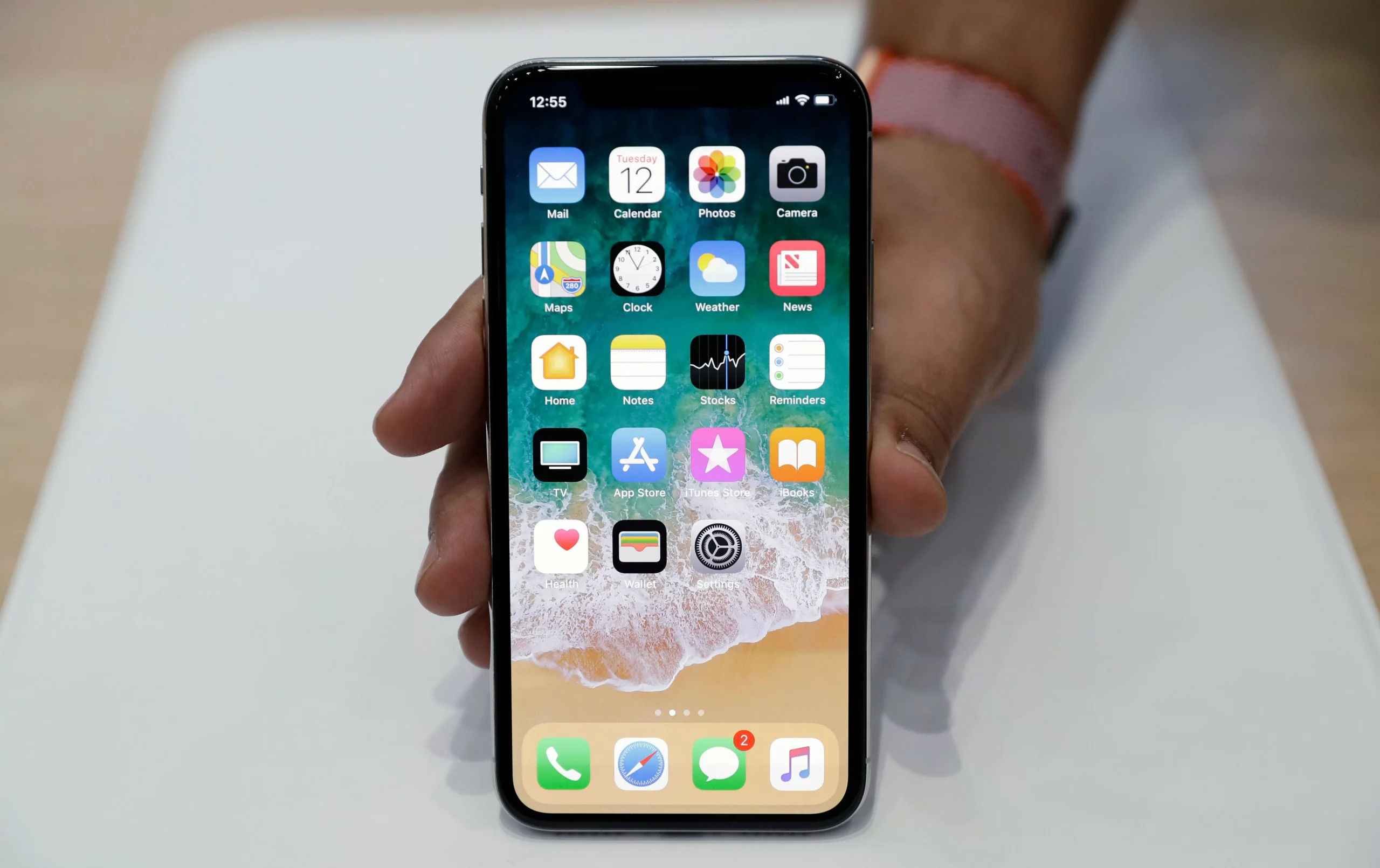
In today’s fast-paced world, technology has become an integral part of our lives. From smartphones to laptops, we rely on these devices for communication, entertainment, and even work. However, as technology continues to evolve, we often find ourselves with a collection of outdated, broken, or unused devices. While some may call it “device-hoarding,” it’s important to consider the potential risks associated with keeping these devices.
One of the biggest concerns when it comes to old devices is the security of our personal information. We may think that simply deleting our data or performing a factory reset is enough to protect our privacy, but the truth is, there may still be traces of our personal information left on these devices. This is where Apple’s new feature comes in – allowing users to easily remove their Apple ID from any device they are no longer using.
According to Apple Support, this feature is beneficial as it prevents any random device from accessing your account, receiving notifications, or making purchases in the App Store. It also ensures that no one can sync or merge your data or access your private information such as your camera roll or notes app. This not only protects your privacy but also gives you peace of mind knowing that your personal information is secure.
If you’ve recently upgraded to a new device or turned in an older one, you may not realize that your Apple ID is still associated with it. This means that the device can still access your account and potentially compromise your privacy. With Apple’s new feature, you can easily check and edit the devices that are linked to your Apple ID.
To do this, simply go to the “settings” tab and click on your name. This will take you to the main page of your Apple Account. Scroll down to see the list of devices that are currently active with your Apple ID. You can click on any device to view its details, such as the model, serial number, and software version. If the device is a trusted one, you can also use it to receive Apple Account verification codes.
It’s important to note that the information displayed may vary depending on the type of device. You may also need to authenticate to view certain details. This added layer of security ensures that only you have access to your account information.
To remove a device from your Apple ID, simply tap on “Remove from Account.” You will receive a notification asking you to confirm your decision, and once you do, the device will no longer be linked to your account. However, it’s important to keep in mind that this will not completely delete all your data from the device. If you plan on selling or exchanging the device, it’s crucial to perform a factory reset to ensure that all your personal information is removed.
By regularly checking and removing devices from your Apple ID, you can reduce the number of devices that may be piling up on your account. This is especially important as Apple has a limit of 10 devices (iPads, iPhones, Apple Watches, etc.) and five computers per account. Staying on top of this can prevent any surprises or unexpected notifications from devices you may have forgotten about.
In addition to protecting your privacy, this feature also makes it easier to manage your Apple ID. With the constant evolution of technology, it’s common for people to upgrade to new devices frequently. By removing old devices from your account, you can ensure that your Apple ID is up to date and only linked to the devices you currently use.
In conclusion, Apple’s new feature is a game-changer when it comes to protecting our personal information and managing our Apple ID. It’s easy to use, and it gives us control over the devices that are linked to our account. So, if you want to stay on top of your privacy and have a clutter-free Apple ID, make sure to regularly check and remove any old or unused devices. It’s a small step that can make a big difference in keeping your personal information safe.
